 +91 8309329496

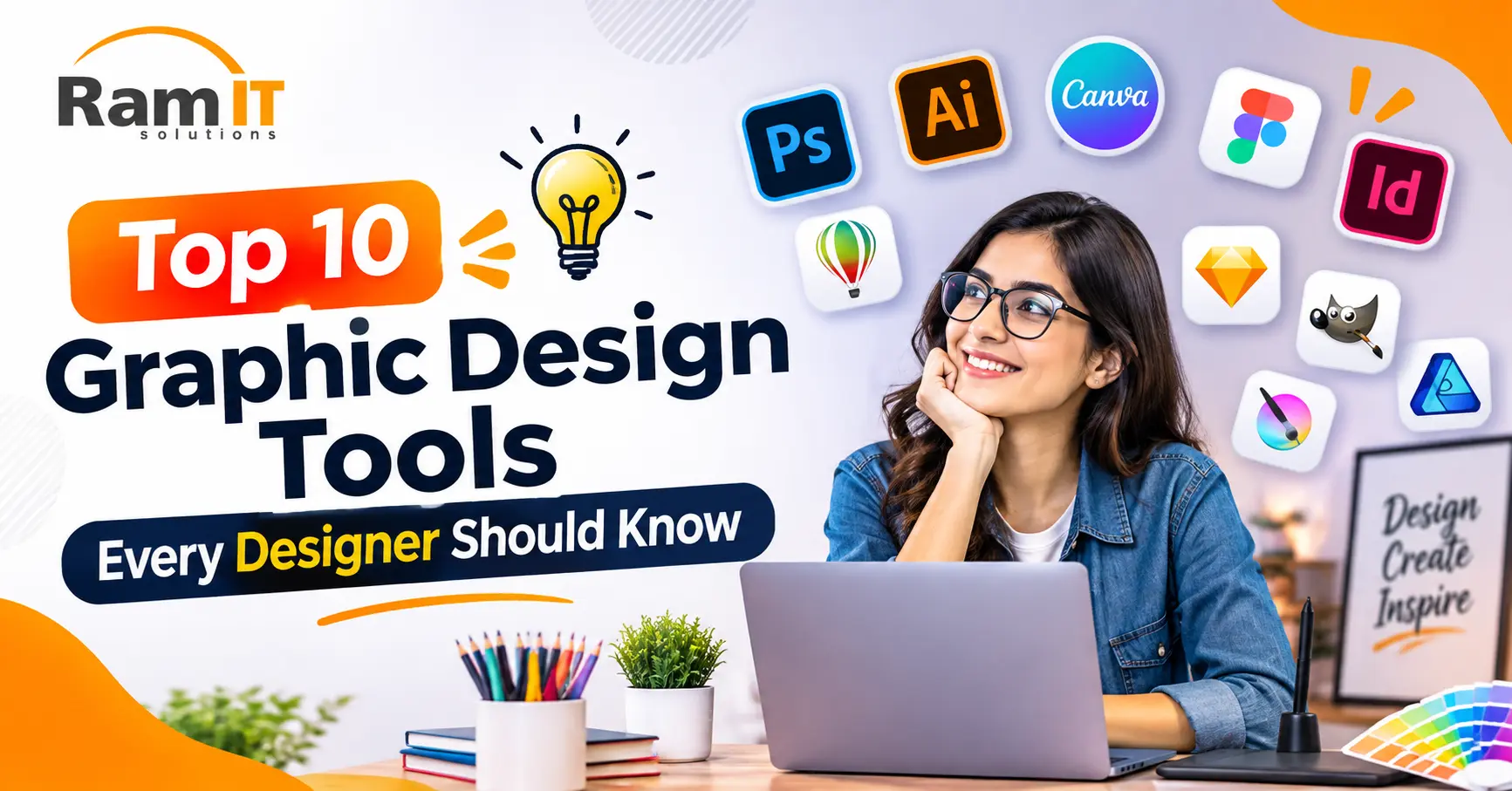
Choosing the right graphic design tools can change how fast you work and how good your final files look. A logo, a social media post, a brochure and a mobile app screen each need a slightly different program, and no single one handles all of them well. This guide covers the 10 graphic design tools that students, freelancers and agency teams use most, with a short note on what each does best, who it suits and where it falls short.
How to Pick the Right Tool
Before you install anything, ask three questions. What will you create most often: photos, logos, print layouts or screen designs? What is your budget, since some programs run on monthly plans while others are free? And which device do you work on, because a few tools only run on Mac or iPad. Your answers narrow the list quickly. Most professionals end up using two or three programs together, for example one for images, one for vectors and one for layouts.
1. Adobe Photoshop
Photoshop is the standard for editing and creating raster images, which are made of pixels. Designers use it for photo retouching, composites, web banners, social media creatives and product mockups. Layers, masks, selection tools and adjustment options give you control over almost every detail. The learning curve is steep and the subscription adds up over time, but few programs match its depth.
Best for: photo editing, digital art and detailed image work.
2. Adobe Illustrator
Illustrator is the first choice for vector graphics, which stay sharp at any size. Logos, icons, illustrations, packaging and infographics are usually built here. A logo drawn in Illustrator prints cleanly on a visiting card and on a hoarding without losing quality. The pen tool takes practice, though most designers get comfortable within a few weeks.
Best for: logos, icons and scalable illustrations.
3. Adobe InDesign
InDesign is built for page layout. If your project has many pages or needs consistent text styling, this is the right program. Master pages, paragraph styles and grid controls make brochures, magazines, catalogues and e-books much easier to manage than they would be in an image editor. It also exports print-ready PDFs with bleed and crop marks.
Best for: brochures, catalogues, magazines and multi-page documents.
4. CorelDRAW
CorelDRAW has been popular with print shops and signage makers in India for many years, mainly because of its fast vector tools and simple layout features. It handles visiting cards, flex banners, stickers and packaging dielines well. Corel has traditionally offered a one-time purchase option next to subscriptions, so check the current plans before you decide.
Best for: print work, signage and vector layouts.
5. Canva
Canva runs in the browser and on mobile, and it is the easiest program on this list to learn. Thousands of templates, a built-in photo library and drag-and-drop editing let small business owners produce social posts, presentations and posters in minutes. The free plan covers the basics, while the paid plan adds brand kits and resizing. Control over fine details is limited, so complex custom work needs another tool.
Best for: beginners, quick social media content and small businesses.
6. Figma
Figma started as an interface design tool and is now used for much more. Several people can work on the same file at the same time, which makes it very useful for teams and client reviews. Components, auto layout and prototyping help you design websites and apps, and many designers also use it for presentations and social graphics. A free starter plan is available.
Best for: website and app design, and team collaboration.
7. Affinity Designer
Affinity Designer offers vector and pixel tools in one program, along with a clean interface and fast performance. It is a sensible alternative to Illustrator for freelancers who want professional results without a heavy subscription cost. Plugin support and community resources are smaller than Adobe’s, but the core features are strong enough for logos, illustrations and branding projects.
Best for: designers who want a lower-cost alternative to Adobe.
8. Procreate
Procreate is an iPad app made for drawing. With an Apple Pencil, its brushes feel natural, which is why illustrators and hand lettering artists favour it. You can sketch, paint, animate simple frames and export files for further editing. It works only on iPad and its vector support is limited, so many designers pair it with Illustrator.
Best for: illustration, sketching and hand lettering.
9. Inkscape
Inkscape is a free, open-source vector editor for Windows, Mac and Linux. It works with the SVG format and covers logo design, icons and simple illustrations without any cost. The interface feels less polished than paid programs and large files can run slowly, but for students and anyone learning vector basics it is a good place to begin.
Best for: free vector design and practice.
10. GIMP
GIMP is a free image editor with tools for retouching, colour correction, layers and masks. It does not look like Photoshop, so expect an adjustment period, yet it handles most everyday editing jobs. Plugins add extra features, and the active user community has produced plenty of free tutorials.
Best for: free photo editing on a tight budget.
Which Graphic Design Tools Should a Beginner Start With?
Start with Canva to understand layout, colour and typography without a steep learning curve. Once you are comfortable, add one image editor, either Photoshop or GIMP, and one vector tool, either Illustrator or Inkscape. Learn the basic design principles alongside the software, such as alignment, contrast, hierarchy and spacing. A designer with strong fundamentals produces better work in a free program than a beginner does in an expensive one.
Tips for Getting More From Your Design Software
Learn the keyboard shortcuts for the three or four actions you repeat most, since they save hours over a month. Keep your layers named and grouped so a file is easy to hand over to a client or a teammate. Save work in an editable format as well as the final export, and build a small folder of fonts, colour codes and logos you reuse often. These habits matter more than owning the most expensive software.
Conclusion
The best graphic design tools are the ones that fit your projects, your budget and your device. Try the free versions, build small practice projects and keep the combination that feels natural to you. At Ramit Solutions, our designers use many of these programs every day to create logos, brand identities, social media creatives and print material for businesses. If you would rather hand the work to professionals, explore our Graphic Design Services in Hyderabad and tell us what you need. We will help you turn the idea into a design your customers remember.